File details
Click a file in the list. The detail panel on the right then shows everything about that file: its details, the available actions and a preview.
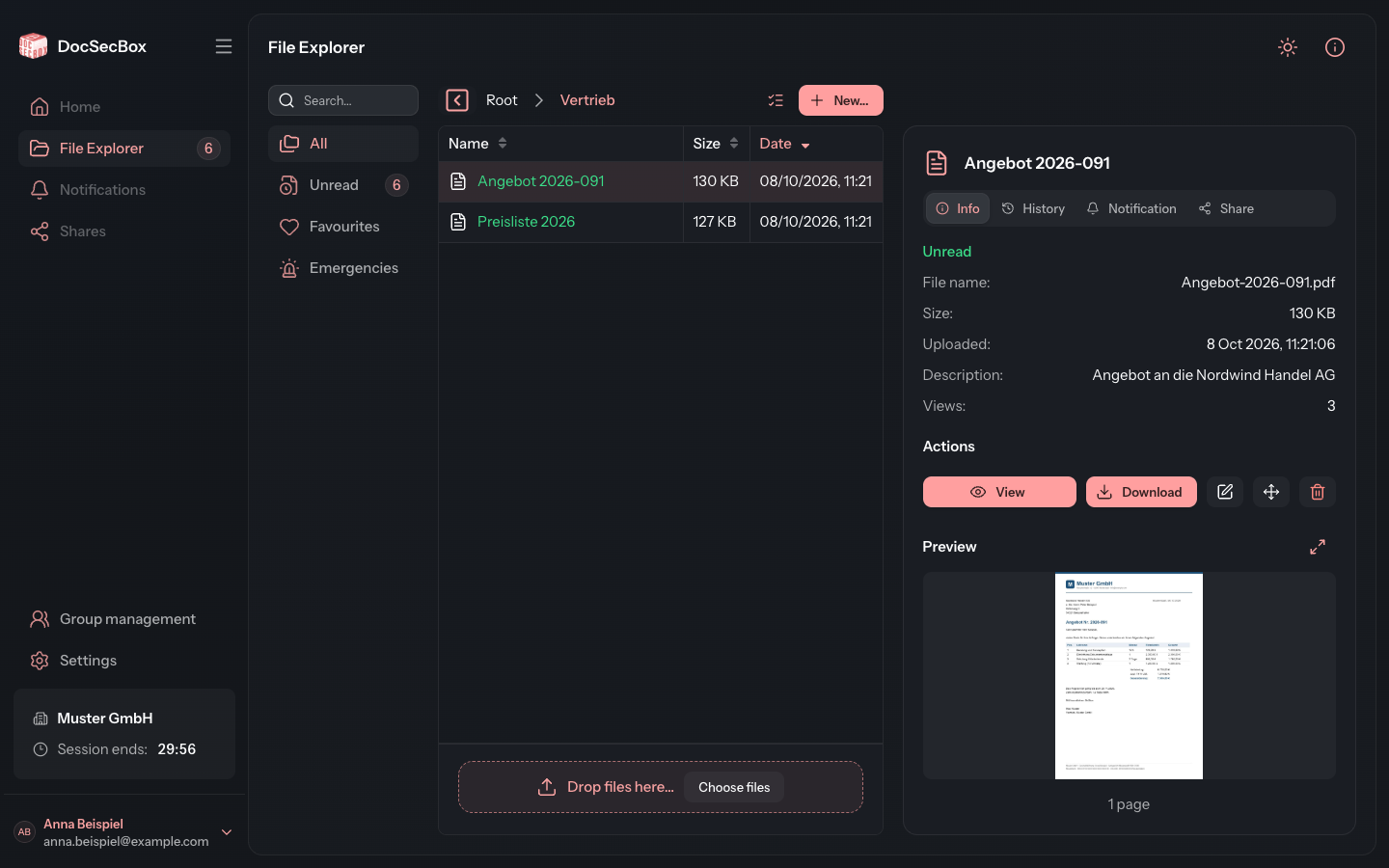
There are up to four tabs at the top of the detail panel. Which ones you see depends on your permissions.
| Tab | Content |
|---|---|
| Info | Details, actions and preview, as described on this page |
| History | Who opened or changed the file and when, see History |
| Notification | Let others know about the file by email, see Notification |
| Share | Pass the file on by link to people without an account, see Share |
Details of the file
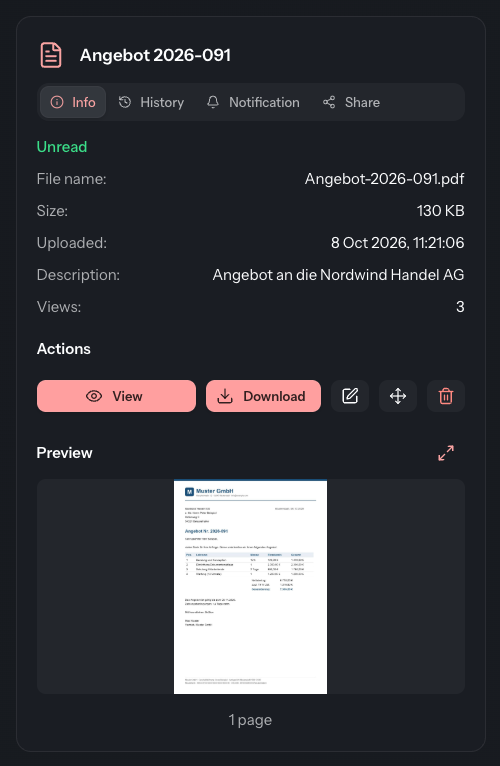
The Info tab only shows the lines that have something to say.
| Line | Meaning |
|---|---|
| Unread | Appears in green as long as you have not opened the file since its last change |
| Identifier: | Free text for searching and grouping, for example "Invoices" |
| File name: | Name of the uploaded file |
| Size: | Size of the file |
| Uploaded: | Date and time of the upload |
| Modified: | Last change, if the file was changed after the upload |
| Available until: | Large files only: how long the file stays stored |
| Description: | Description of the file |
| Version: | Version of the file |
| File options: | From when or until when the file is visible |
| Views: | How often the file has been viewed or downloaded |
Below that, if the folder offers it, is the Workflow block with the Done checkbox and the file's status. See Status.
Paid add-on module
The Available until: line belongs to the paid add-on module for large files. Large files are only stored for a set time and are deleted automatically afterwards. See Upload.
Viewing a file
You open PDF files and images directly in the DocSecBox:
- Under Actions, click View. Alternatively, click Full screen next to Preview.
- The file opens at full size in the viewer.
- Close takes you back to the explorer.
You download other file types, see Download.
Only opening a file with View or Full screen counts as an access. It increases the Views: count and the file then counts as read. Clicking it in the list and the small preview at the end of the tab do not count.
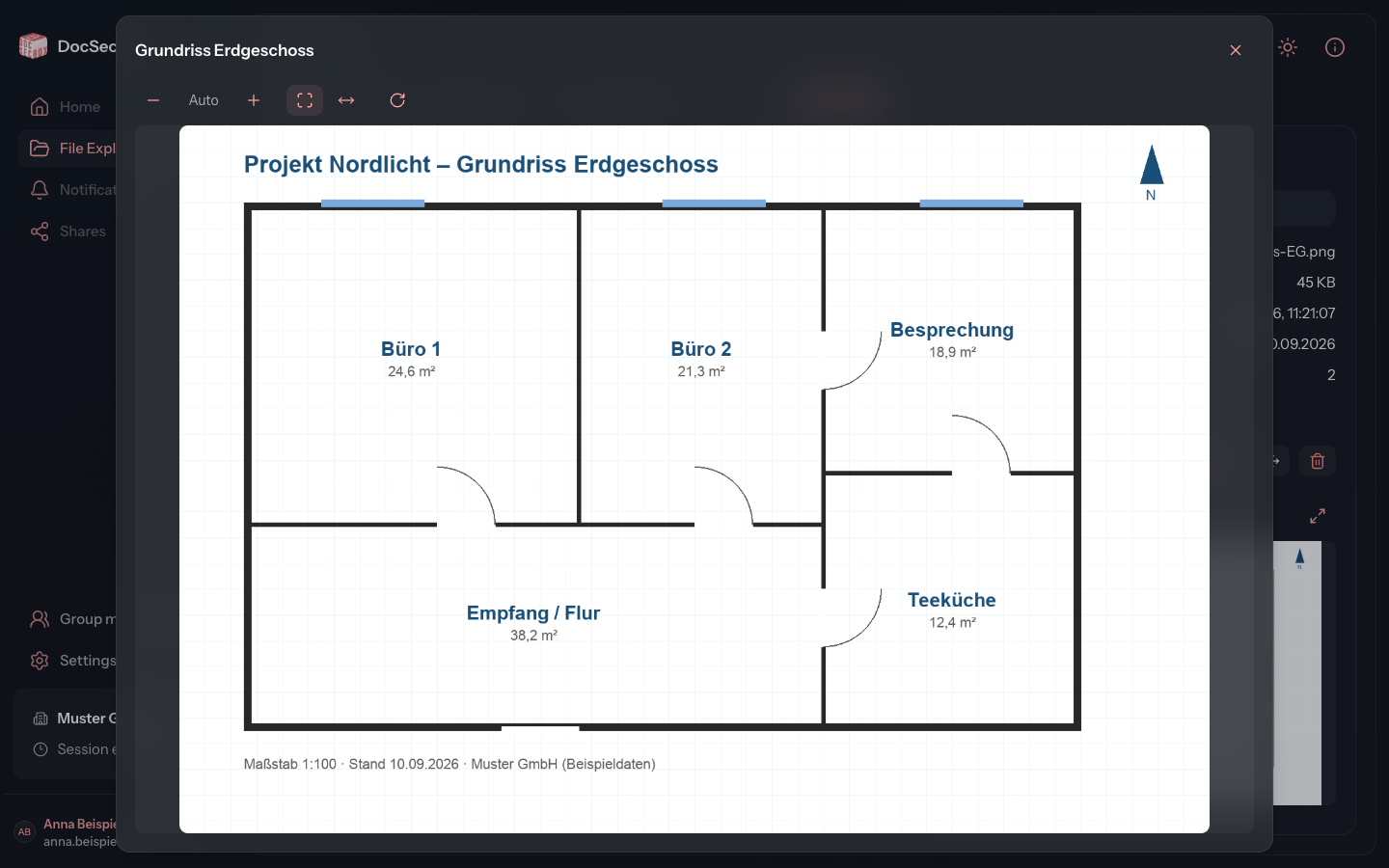
| Button | Effect |
|---|---|
| Zoom out / Zoom in | Changes the zoom level in steps. Until you change it, it reads Auto. |
| Show the whole image | Fits the whole image into the window |
| Fit to width | Fits the image to the window width |
| Rotate clockwise | Rotates the image by 90 degrees |
| Close | Closes the viewer |
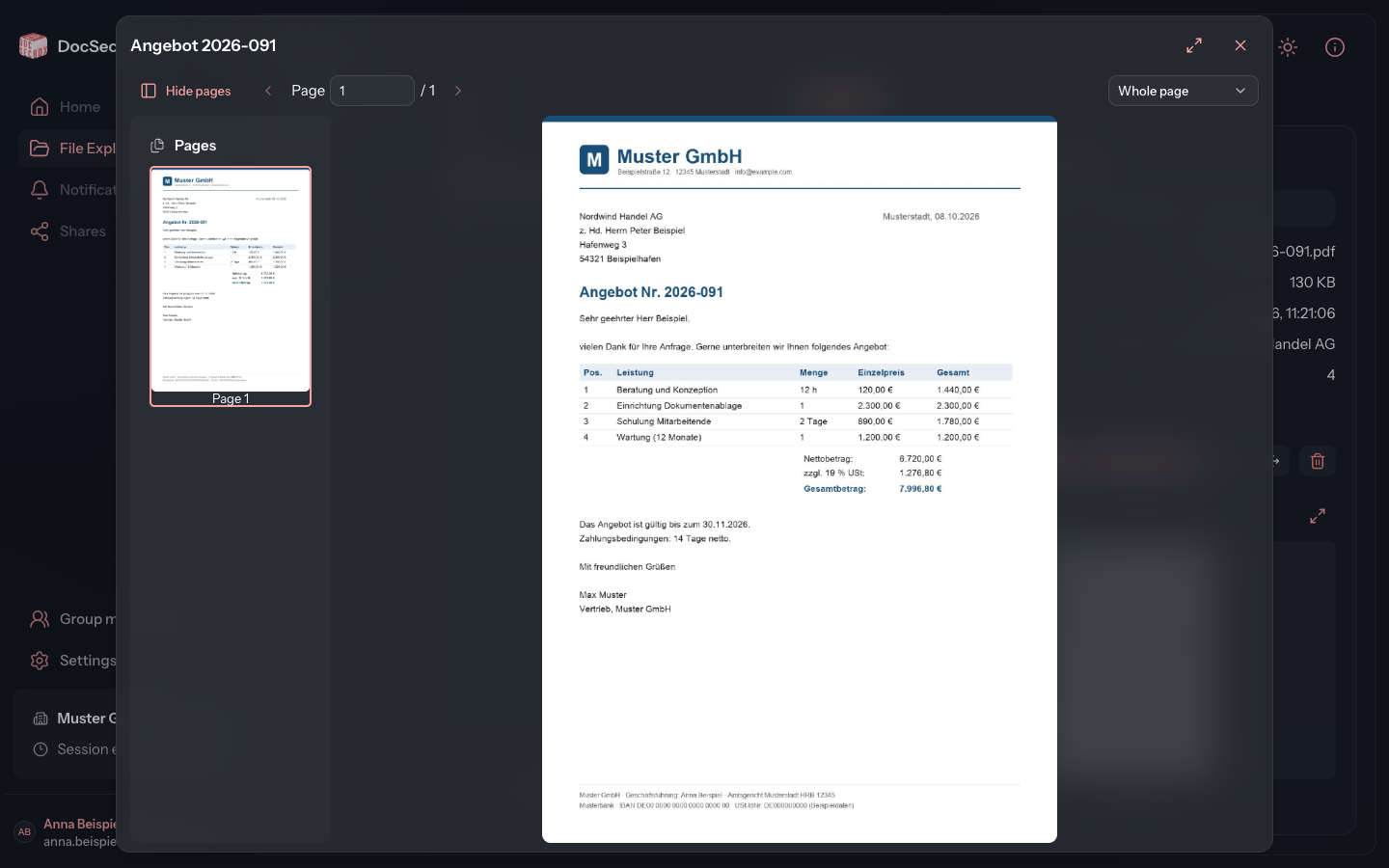
| Button or field | Effect |
|---|---|
| Hide pages / Show pages | Hides or shows the Pages sidebar |
| Previous page / Next page | Moves one page on or back |
| Page field | Jumps to the page you enter |
| Zoom | Whole page or fixed steps from 50% to 400% |
| Fullscreen | Fills the screen with the PDF; Exit fullscreen returns |
| Close | Closes the viewer |
If a PDF is protected by a password, the viewer asks for the PDF password.
Editing a file
To change a file's title, description or settings:
- Under Actions, click Edit.
- Change what you need in the Edit file dialog.
- Click Save file.
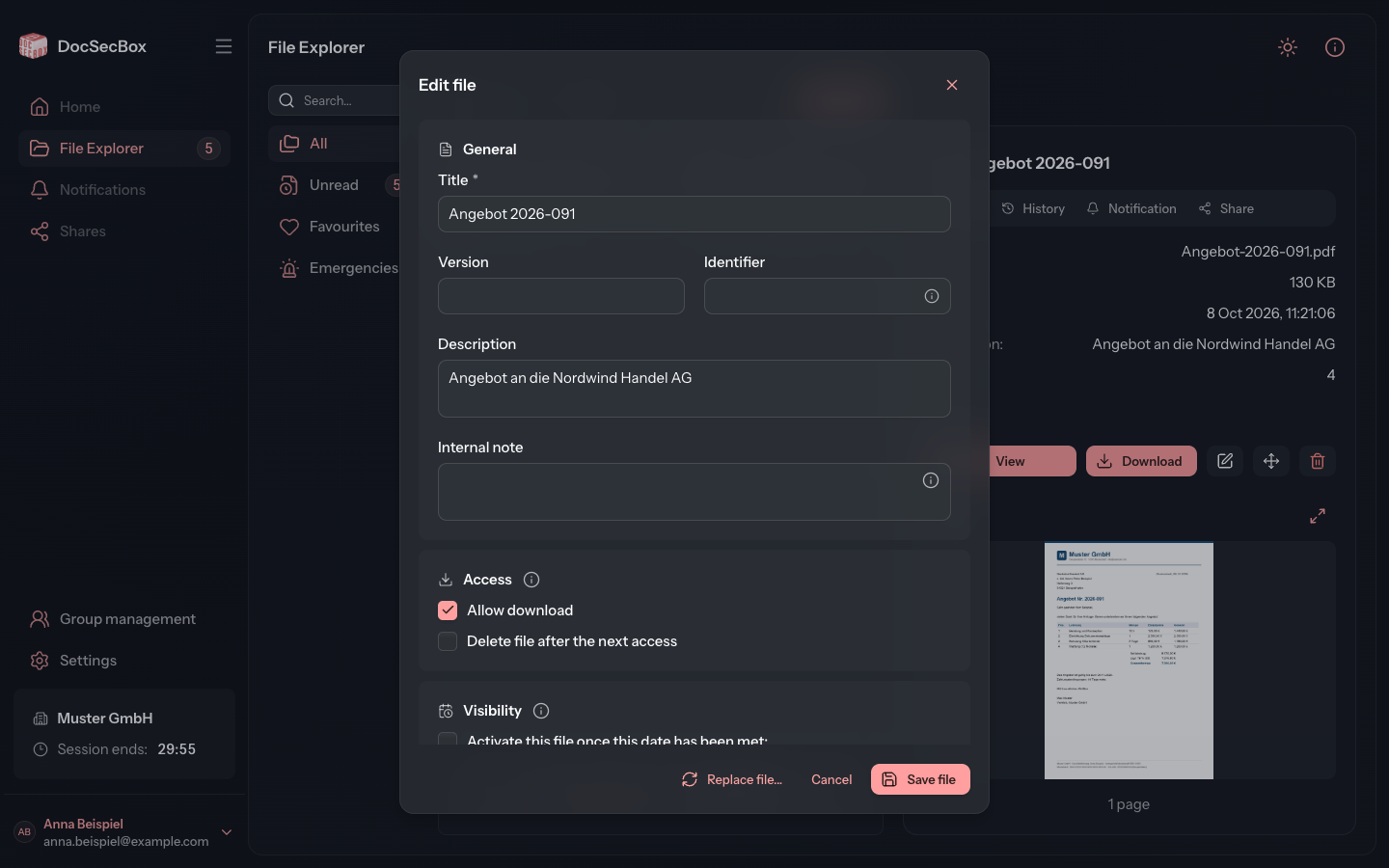
The dialog has the same fields as the upload. What they mean is described under Upload.
| Section | Fields |
|---|---|
| General | Title (must not be empty), Version, Identifier, Description, Internal note (visible to administrators only) |
| Access | Allow download, Delete file after the next access |
| Visibility | Activate this file once this date has been met:, Deactivate this file once this date has been met: |
Replace file... replaces the file's content with a new version. No new file is created.
After saving, the file counts as unread again for everyone who had already read it.
Good to know
- Greyed-out buttons: if you lack a permission, the button is greyed out. Move the mouse over it to read the reason, for example Editing this file is not permitted. The available permissions are listed under Members.
- Files that are not active yet: if a file has a start date in the future, only you as its creator and administrators can see it. View and Download are greyed out until then.
- Deletion after access: if Will be deleted after the next view or download appears below the actions, the file disappears after it is next opened. See Download.