Filters
The filters in the filter bar on the left show you quickly what is new, important or urgent. Clicking a filter replaces the list with a matching selection from all the folders you may see.

| Filter | Shows |
|---|---|
| All | The normal view: folders and files level by level, see File Explorer |
| Unread | All unread files from all folders |
| Favourites | The folders you have marked as favourites |
| Emergencies | The emergency folders |
If you have entered a search term, the filter still applies: the search then only finds hits that also match the filter. All takes you back to the normal view.
Finding unread files
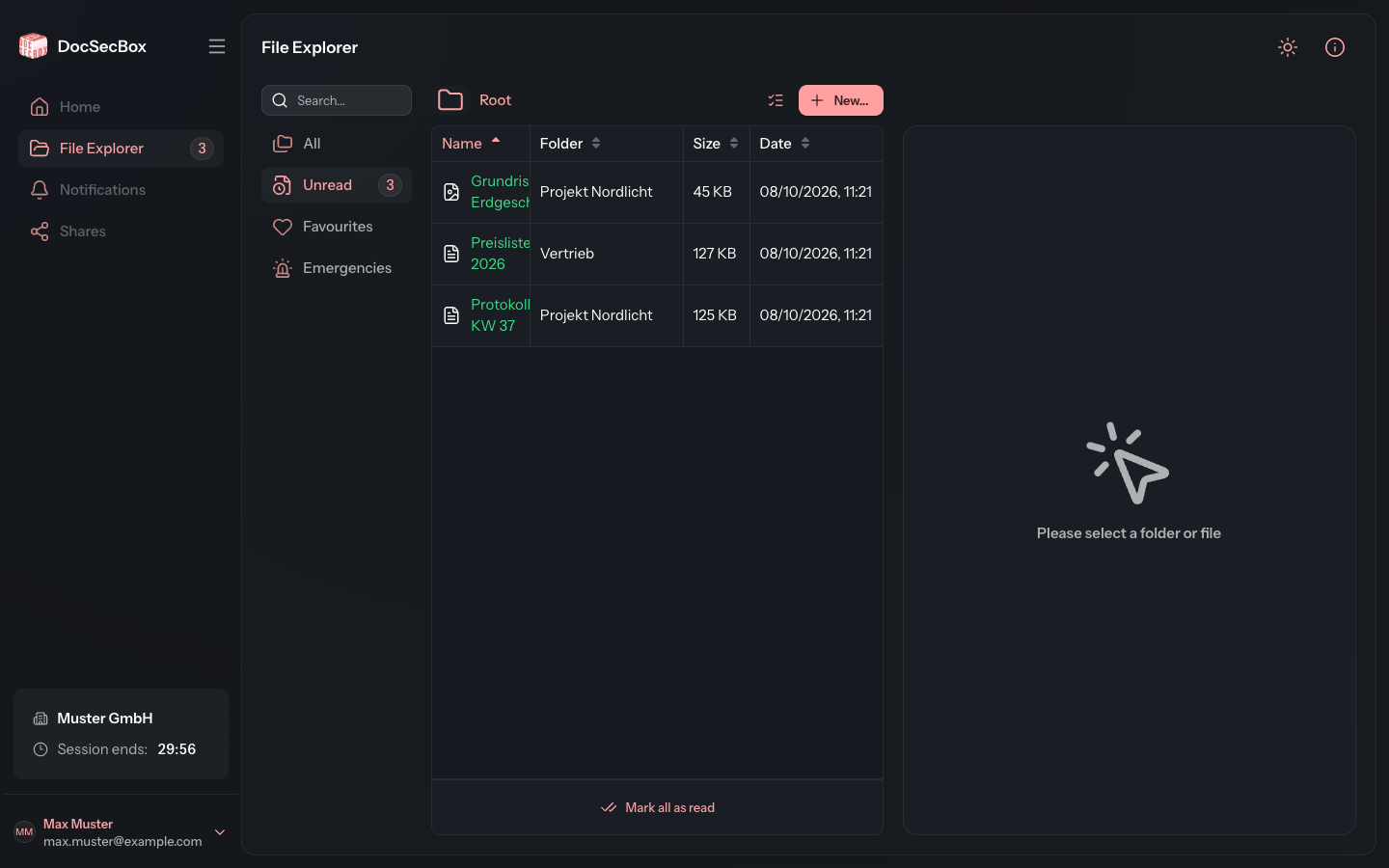
A file counts as unread as long as you have not opened it since its last change. So if someone changes a file you already knew, it is unread for you again.
Unread collects all of these files from all folders. The Folder column shows where a file is. Clicking the folder name opens that folder.
The number after Unread tells you how many unread files there are. The same number appears in the navigation bar on the File Explorer entry. If one of them is in an emergency folder, the number there is red.
A file stops being unread when you
- open it with View,
- download it, or
- mark it as read.
Merely clicking it in the list and the small preview in the detail panel do not count.
Mark all as read
- Choose the Unread filter.
- Click Mark all as read below the list.
- Confirm with Mark all as read.
The files then count as read without your having opened them. Each file's history records this as "marked as read". This cannot be undone. To mark only some files, use Selecting several files and Mark as read.
Favourites
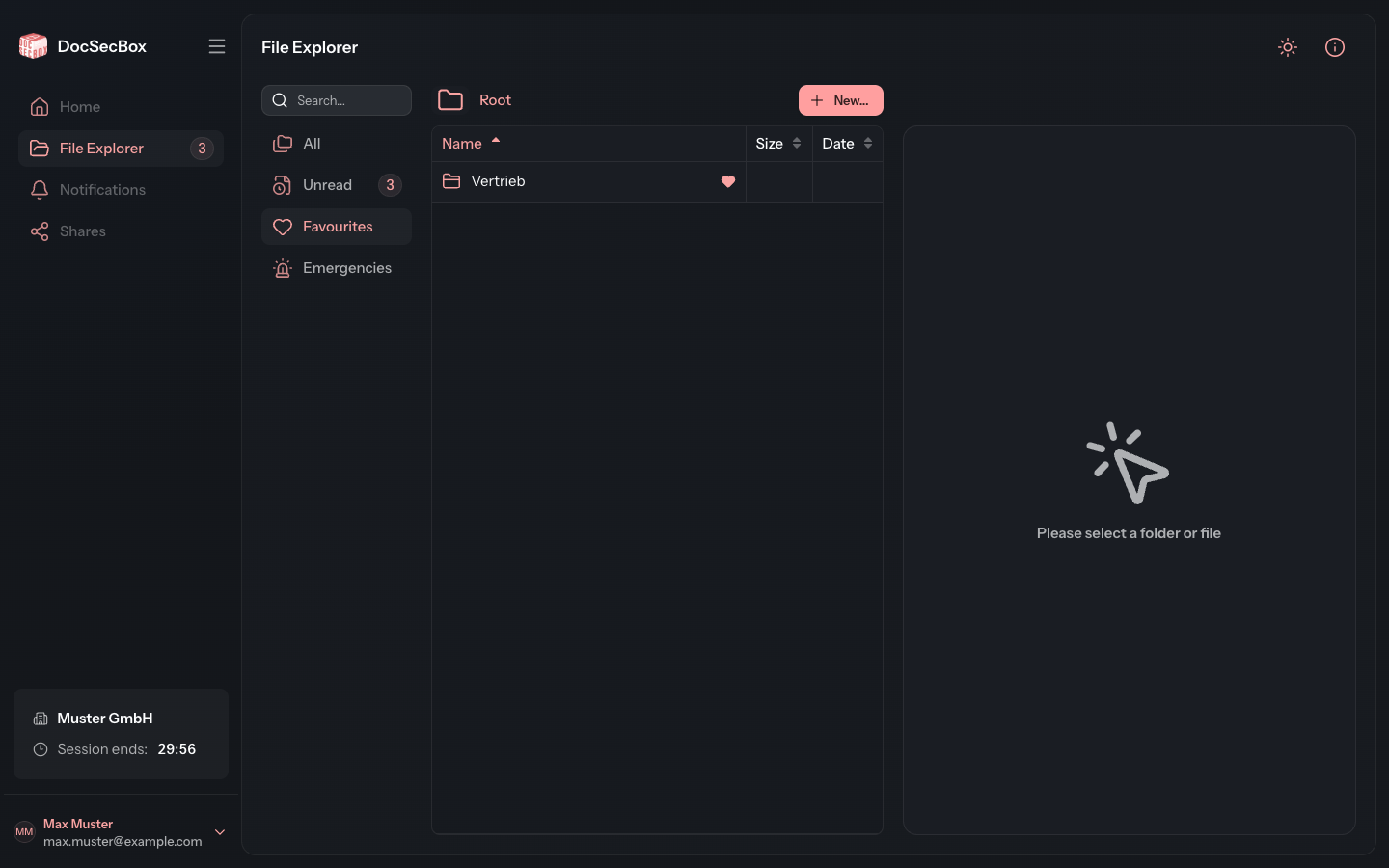
Favourites shows the folders you have marked with the heart Add to favourites in the detail panel. This gets you to folders you need often without searching. How to set and remove favourites is described under Favourite folders.
Emergencies
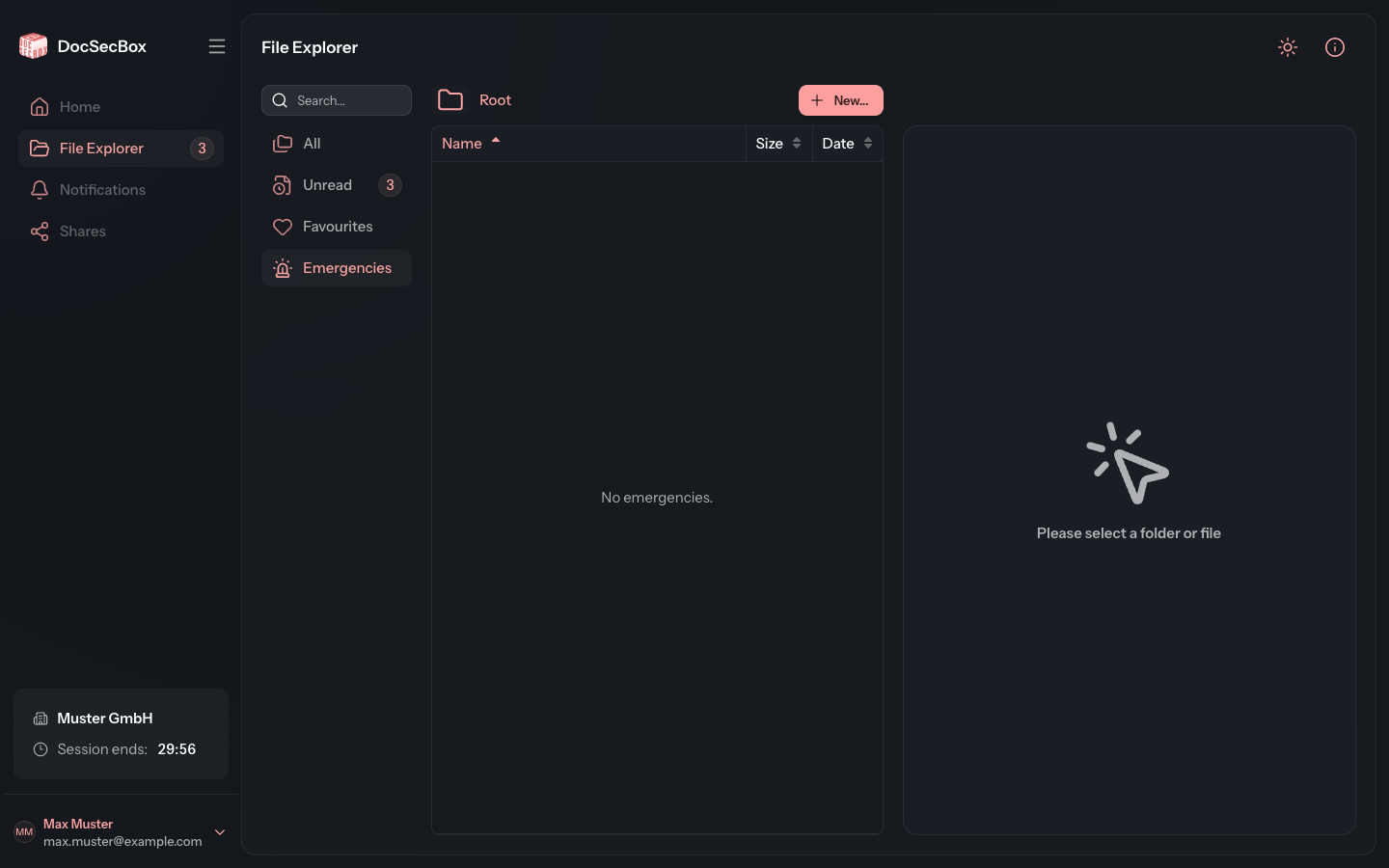
Emergencies shows all emergency folders. These are folders for urgent documents that your administrator has marked as such. The red number after Emergencies counts the unread files in these folders. The same red number appears in the list next to the folder they are in.
When the list is empty
If a filter finds nothing, a short sentence replaces the list: No unread files., No favorites. or No emergencies.