Public share
Paid add-on module
The public folder share is a paid add-on module. Administrators can see whether it is enabled for your DocSecBox under Settings › Application › License. Without the module, a share link cannot be opened.
A public share gives a folder an address of its own. Whoever has the link opens the folder without an account and without signing in, and sees its files to the extent you allow. Only administrators see the Share tab.
Sharing a folder
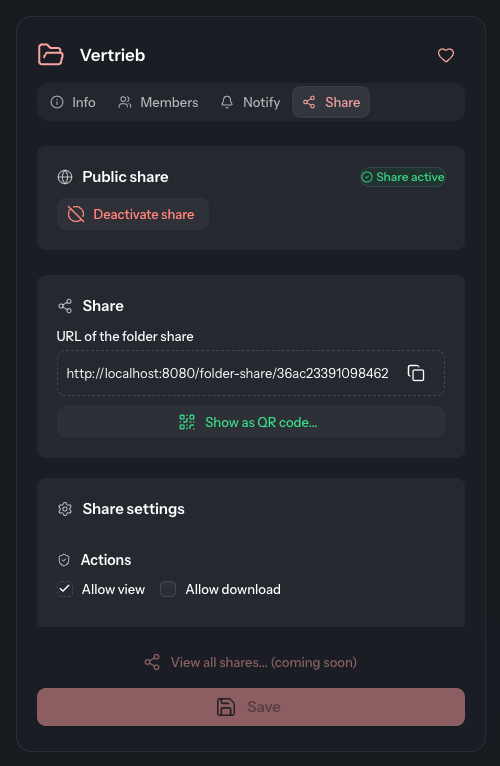
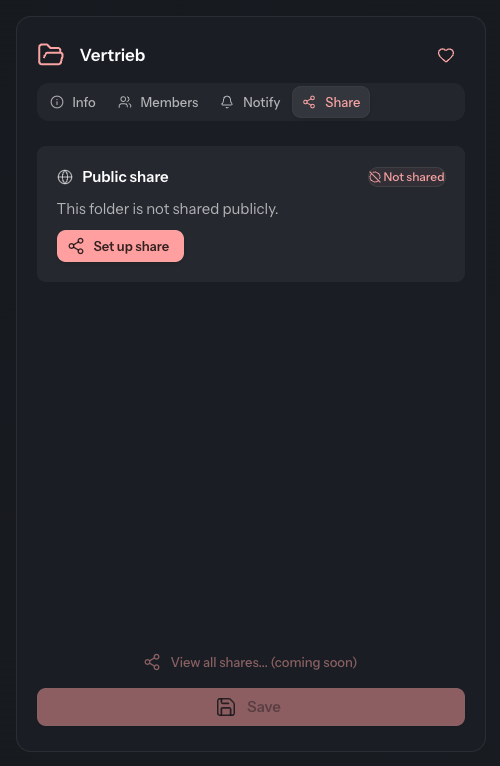
- Select the folder and open the Share tab. The Public share card shows Not shared.
- Click Set up share. This only opens the form; nothing is shared yet.
- Choose the settings (see below).
- Click Save. The card now shows Share active.
- Pass the link on: copy it with next to URL of the folder share, or show it as a QR code with Show as QR code....
What recipients see is described under recipient's view.
Share settings
The Share settings card determines what is possible with the link. Apply changes with Save.
| Section | Setting | Meaning |
|---|---|---|
| Actions | Allow view | The files can be viewed. Always on and cannot be switched off. |
| Actions | Allow download | The files can also be downloaded. |
| Validity | Unlimited | The share does not expire by itself. If you clear the checkbox, choose an end date in the Valid until field. Without a date you cannot save. |
| Security | No PIN | The link alone is enough. If you clear the checkbox, enter a PIN in the PIN (optional) field that recipients must give when opening the link. |
Without a PIN, anyone who has the link gets in. For anything not meant for outsiders, set a PIN and an end date. Only allow downloads where they are needed.
QR code
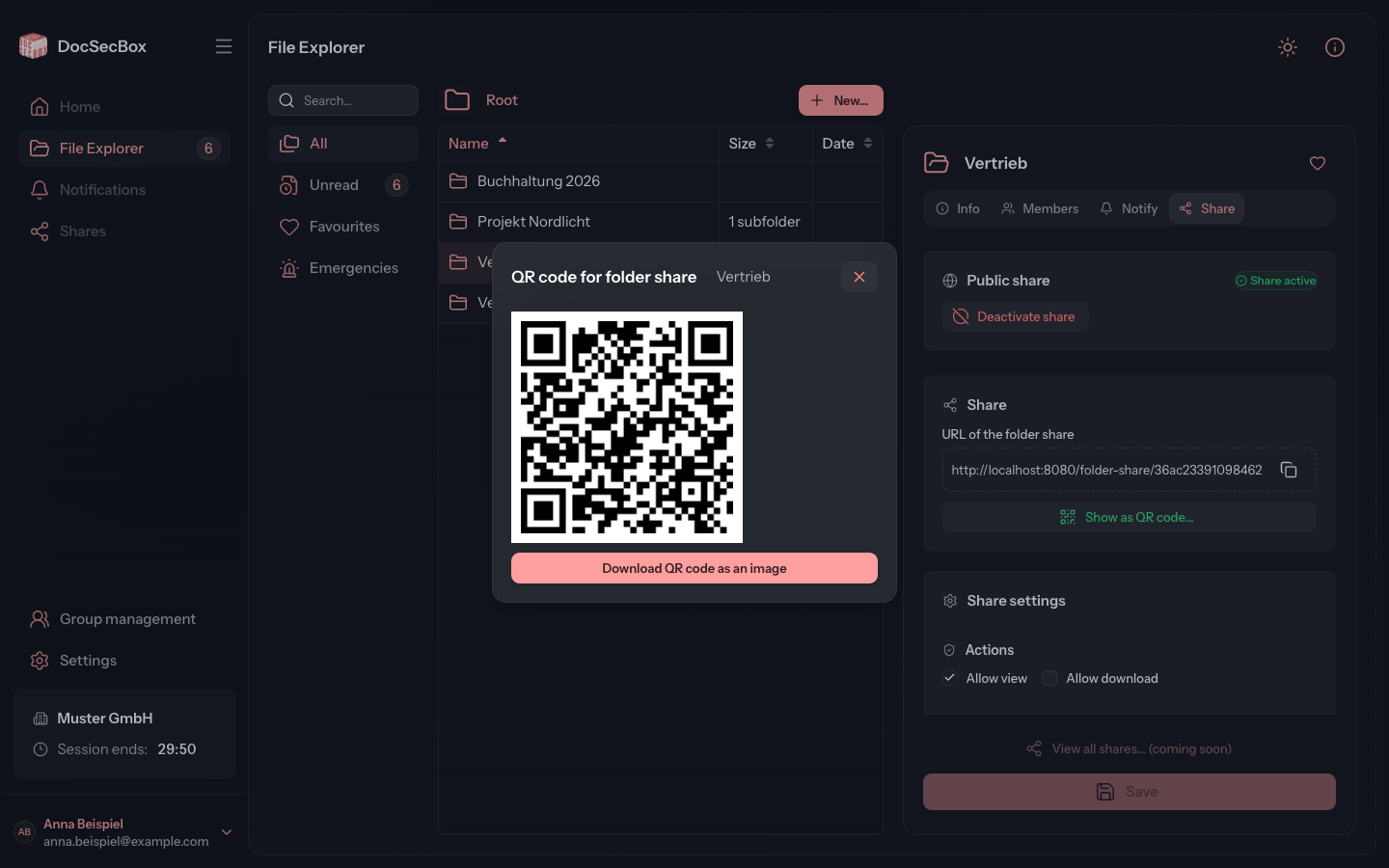
Show as QR code... opens the QR code for folder share dialog. Download QR code as an image saves the code, for example for a notice or a letter.
Reactivating an expired share
Once the end date has passed, the card shows Share expired. Under Validity, choose a new date or Unlimited and click Save. The share then works again under the same address. Links and QR codes already handed out keep working.
Ending a share
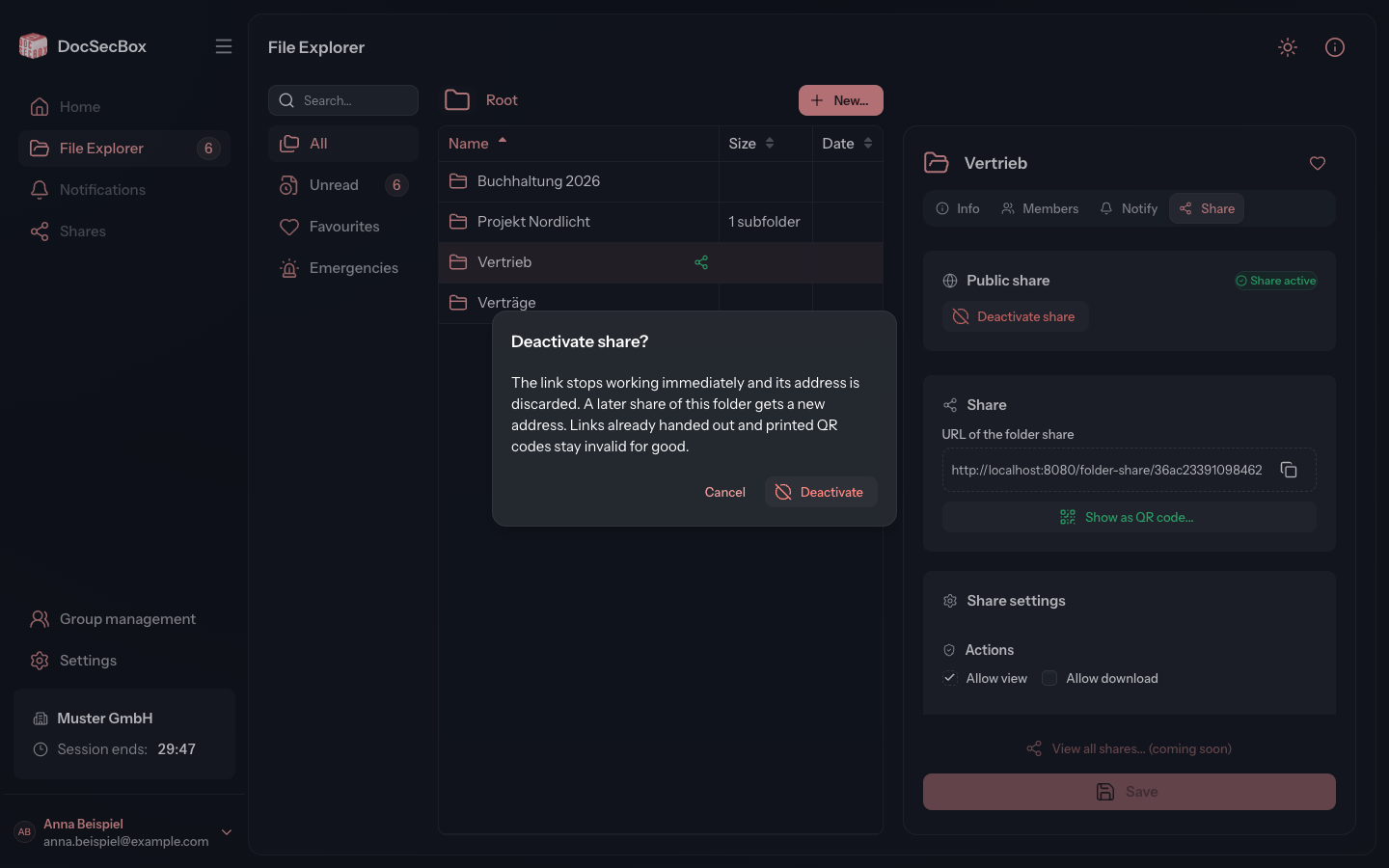
- In the Public share card, click Deactivate share.
- Confirm with Deactivate in the Deactivate share? dialog.
Address is lost
The link stops working immediately and its address is discarded. Links already handed out and printed QR codes will never work again. If you share the folder again later, it gets a new address. If access is only meant to pause for a while, set an end date instead.
Good to know
- If the folder is deactivated (Folder inactive at on the Info tab), the link cannot be opened.
- The button View all shares... (coming soon) has no function yet. See overview of shares.
- To share a single file, use the Share tab of that file, see sharing a file.