Status templates
A status shows where a file stands in your workflow. Which statuses exist in a folder is defined as status templates on the folder. The templates apply to everyone who sees the folder.
Status templates are maintained by administrators and by users with the permission Create/edit folders for assigned groups. How to give a file a status is described under status of a file.
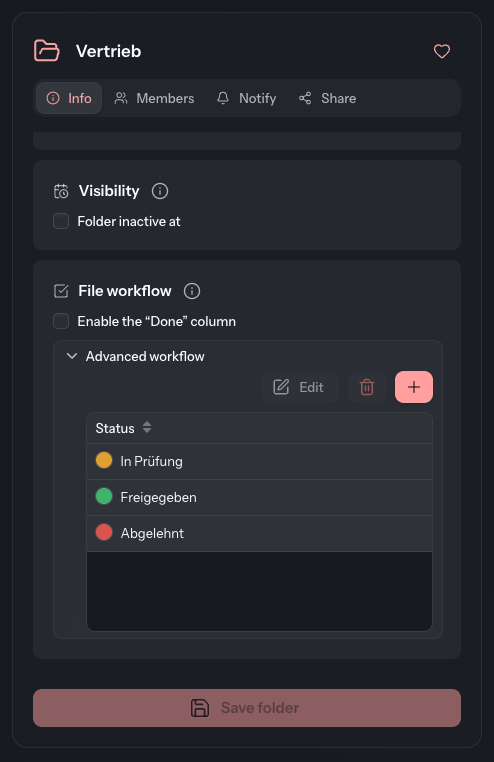
Creating a status template
- Select the folder and open the Info tab in the detail panel.
- In the File workflow card, expand Advanced workflow.
- Click (Add label).
- In the Create status dialog, enter a Name and choose a Color.
- Click Save status.
The template applies immediately. You do not need Save folder for it. As long as a folder has no template, the list reads No label created yet.
Changing or deleting a status template
- Select the template in the list.
- Click Edit to change its name or colour in the Edit status dialog. Or click (Delete label).
Deleting happens without a confirmation question. Files that already carry this status keep showing it.
Status, “Done” column and identifier
Three things on a file are easily confused:
| Term | What it is | Where it is set |
|---|---|---|
| Status | The working state of a file, chosen from this folder's templates | On the file, see status of a file |
| “Done” column | A plain “done” tick without a name of its own | Switched on in the Info tab, granted in the Members tab |
| Identifier | A free text on the file that you can filter by | In the Edit file dialog, see file details |
As soon as a folder has a status template, the list shows a Status column.
Templates for new folders
Your administrator can store a set of status templates under Settings › Application › Objects. Every newly created folder receives these templates. Existing folders keep their own. See Objects.