Favourite folders
Mark folders you use often as favourites. The Favourites filter collects them in one list, no matter how deep they sit. Only you see your favourites.
Marking a folder as a favourite
- Select the folder in the list.
- At the top right of the detail panel, click the heart (Add to favourites).
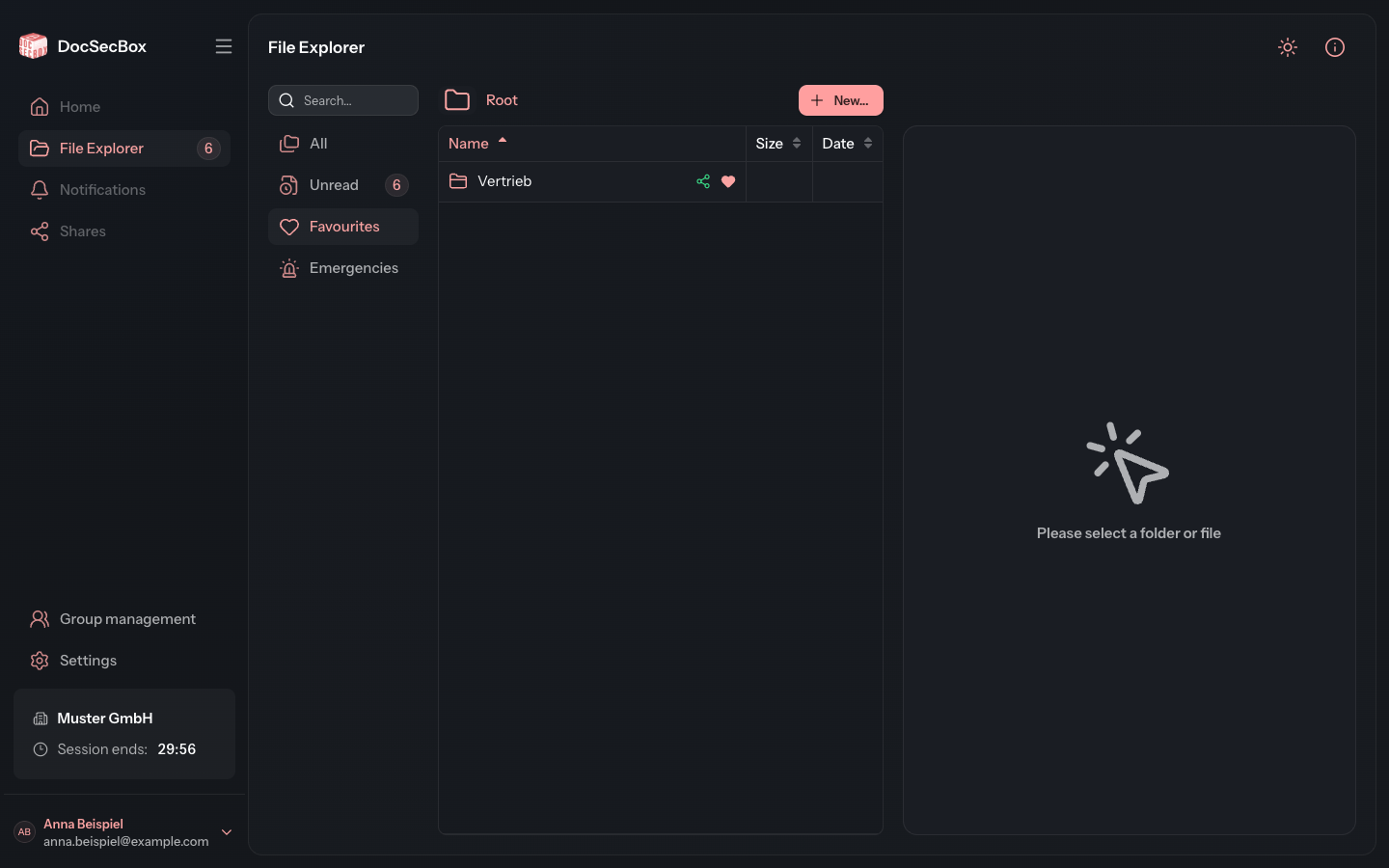
The heart is now filled. In the list, too, a filled heart appears next to the folder's name.

It is quicker with the mouse: drag the folder from the list onto the Favourites entry in the filter bar. This is not available on a smartphone.
Opening your favourites
Click Favourites in the filter bar. The list shows every folder you have marked as a favourite. More on the filters under Filters.
Removing a favourite
Select the folder and click the filled heart (Remove from favourites).
Good to know
- If you only see a folder because a subfolder below it is assigned to you, the heart is missing. You can only mark folders as favourites that are assigned to you yourself.