The user interface
After signing in, you see the navigation bar on the left and, next to it, the content area with its header. This page shows what is where.
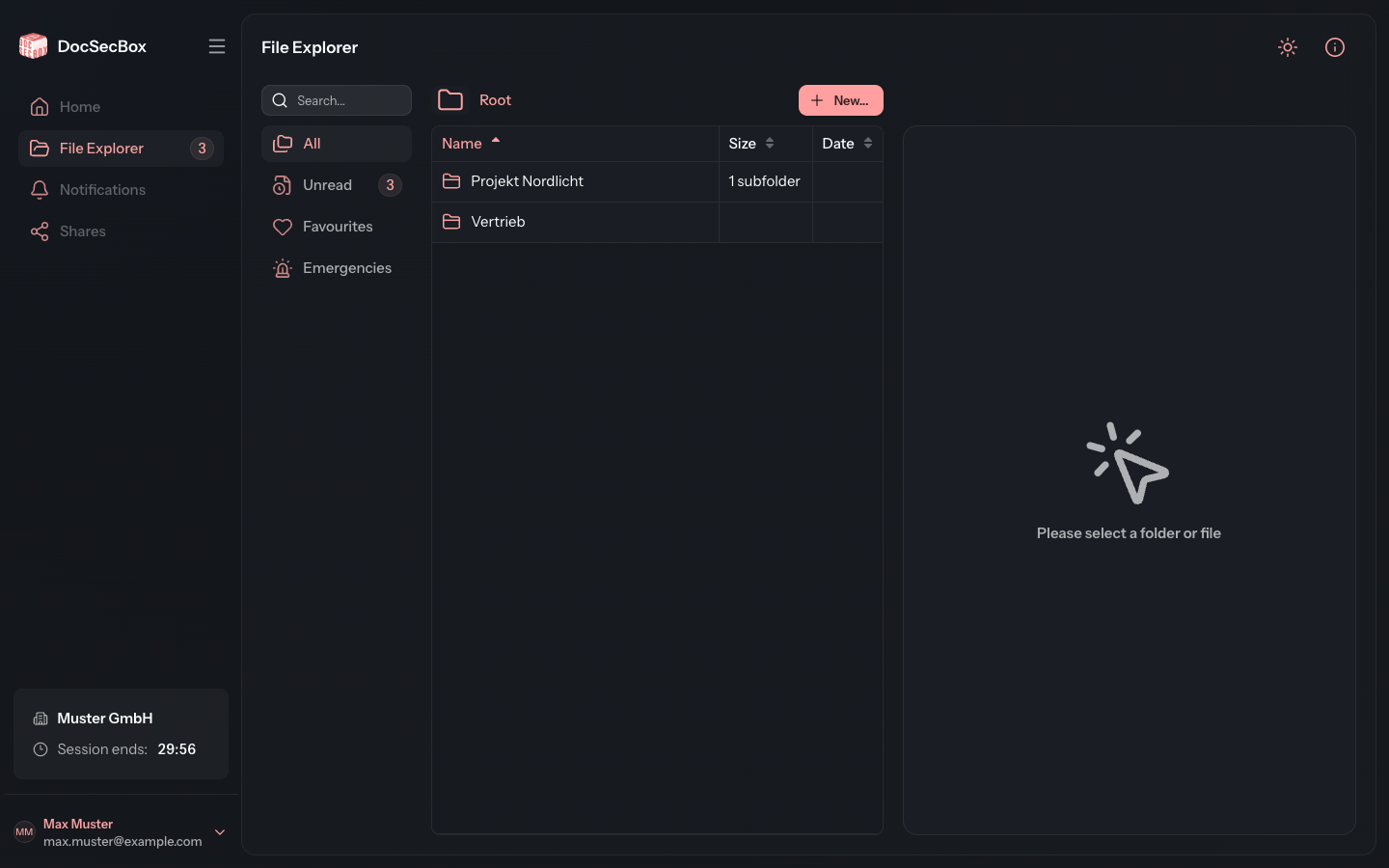
The navigation bar
The bar on the left takes you to the different areas of the DocSecBox.
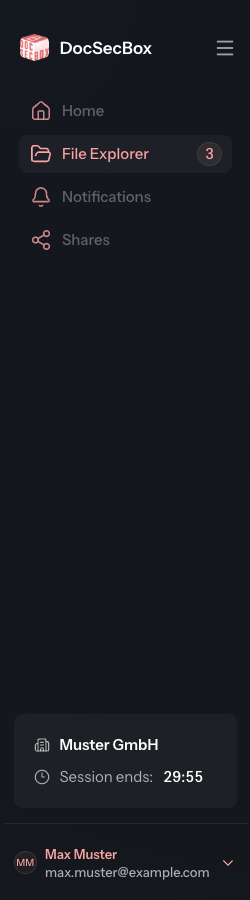
| Entry | What it is for |
|---|---|
| Home | Greyed out. This area will follow in a later version. |
| File Explorer | Folders and files. The number next to it counts your unread files. See File Explorer. |
| Notifications | Greyed out. This area will follow in a later version. |
| Shares | Greyed out. This area will follow in a later version. |
| Group management | Managing the members of groups. Only for group administrators and administrators, see Group management. |
| Settings | Managing the DocSecBox. Only for administrators, see Settings. |
Entries you may not use are not shown at all. So if Group management or Settings is missing for you, that is not an error.
Tenant card and session
At the bottom of the navigation bar is the tenant card. It shows the logo or the name of your tenant and, under Session ends:, the time at which your session expires.
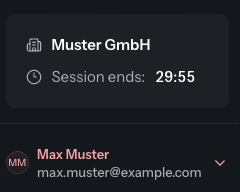
As long as you are working, the session extends itself and the time moves on. If you do not work for a while, the DocSecBox signs you out at the time shown. How long that takes is set in your profile under Automatic Logout.
The user menu
At the very bottom is a button with your name and email address. It opens the user menu.
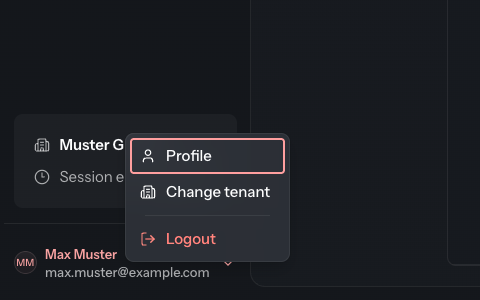
| Entry | What it is for |
|---|---|
| Profile | Your own settings: language, appearance, password, permissions. See Profile. |
| Change tenant | Continue working in another tenant, if your account belongs to several. |
| Logout | End the session. |
The profile can only be reached through this menu. It has no entry of its own in the navigation bar.
The header
The header shows the name of the area you are in on the left and two icons on the right.

| Icon | What it is for |
|---|---|
| Switch to light theme | Switches between dark and light colour mode. In light mode the button is called Switch to dark theme. |
| Help | Opens the help menu. |
The colour mode is the same setting as Appearance in the profile. Dark mode is the default.
The help menu
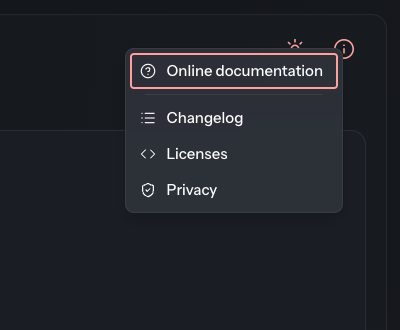
| Entry | What it is for |
|---|---|
| Online documentation | Opens the page of this manual for the area you are in, in a new tab. Missing on pages that have no manual page. |
| Login info | Shows a notice your administrator has left for your account. Only appears if there is one. |
| Changelog | Opens the changelog of this manual. |
| Licenses | Lists the licences of the software components the DocSecBox is built from. |
| Privacy | Shows your tenant's privacy notice. |