Login
To work with the DocSecBox, you sign in with your username and password. The first time, you set your password beforehand.
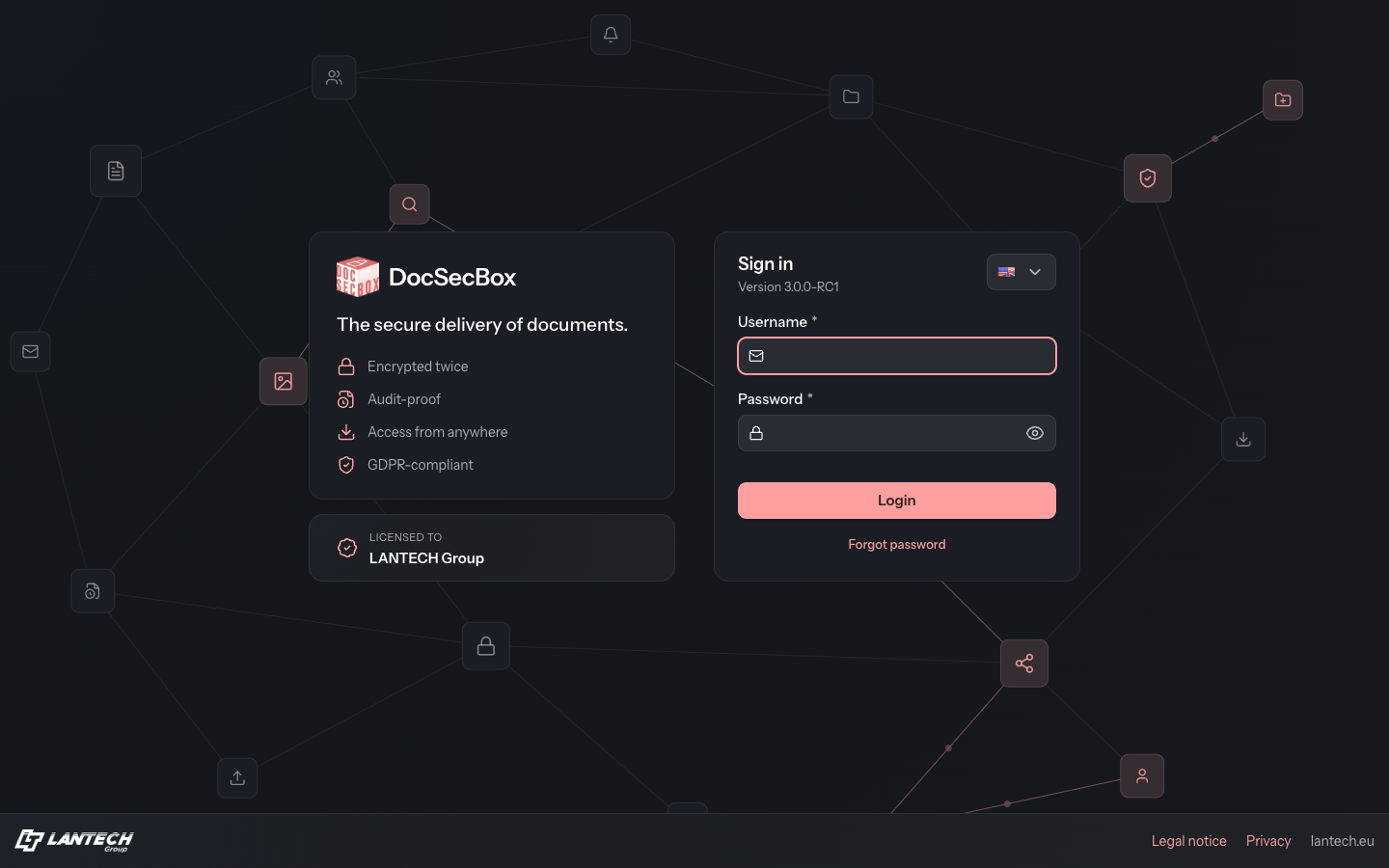
Signing in for the first time
When your administrator creates your account, you receive an email. It contains your username and a link for setting your password.
- Click the link in the email. The login page opens with Set password.
- Enter a password under New password and repeat it under Repeat new password. A list shows which requirements the password already meets.
- Click Save password. The message “Password set successfully!” appears.
- Sign in as described below.
The link is only valid for a limited time; the email says for how many hours. If it has expired, request a new one with Forgot password. If you have not received an email, contact your administrator.
Sign in
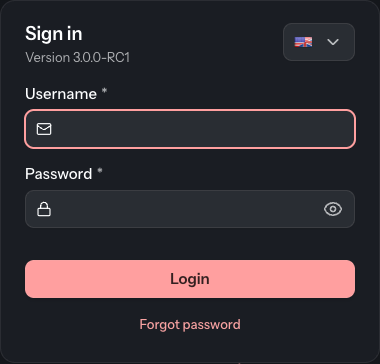
- Open the address of your DocSecBox in the browser.
- If needed, choose the language at the top right of the login card (the field with the flag).
- Enter your Username and Password.
- Click Login.
Depending on your account, one or two more steps follow: choosing the tenant and entering the code from the authenticator app. Then the File Explorer opens. How the interface is laid out is described under The user interface.
Choose a tenant
If your account belongs to more than one tenant, Select tenant appears after signing in, with the note “Please select the tenant to work in.”
- Select the tenant you want in the Tenant field.
- Click Continue.
Back returns to the login. Later you switch tenants through the user menu, see The user interface.
Enter the code from the authenticator app
If you have set up two-factor authentication, the login card asks for a code under 2-Factor-Authentication: “Please enter the current code from the authenticator app.”
- Open the authenticator app on your smartphone.
- Enter the code it shows.
- Click Confirm.
If your tenant requires two-factor authentication and you have not set it up yet, the card shows “2-Factor-Authentication required! Check the manual for setup instructions.” instead, with a QR code and the Key. Scan the QR code with the app, enter the code from the app under Current code and click Activate. Which app is suitable and how the setup works in detail is described under Two-Factor Authentication.
If signing in fails
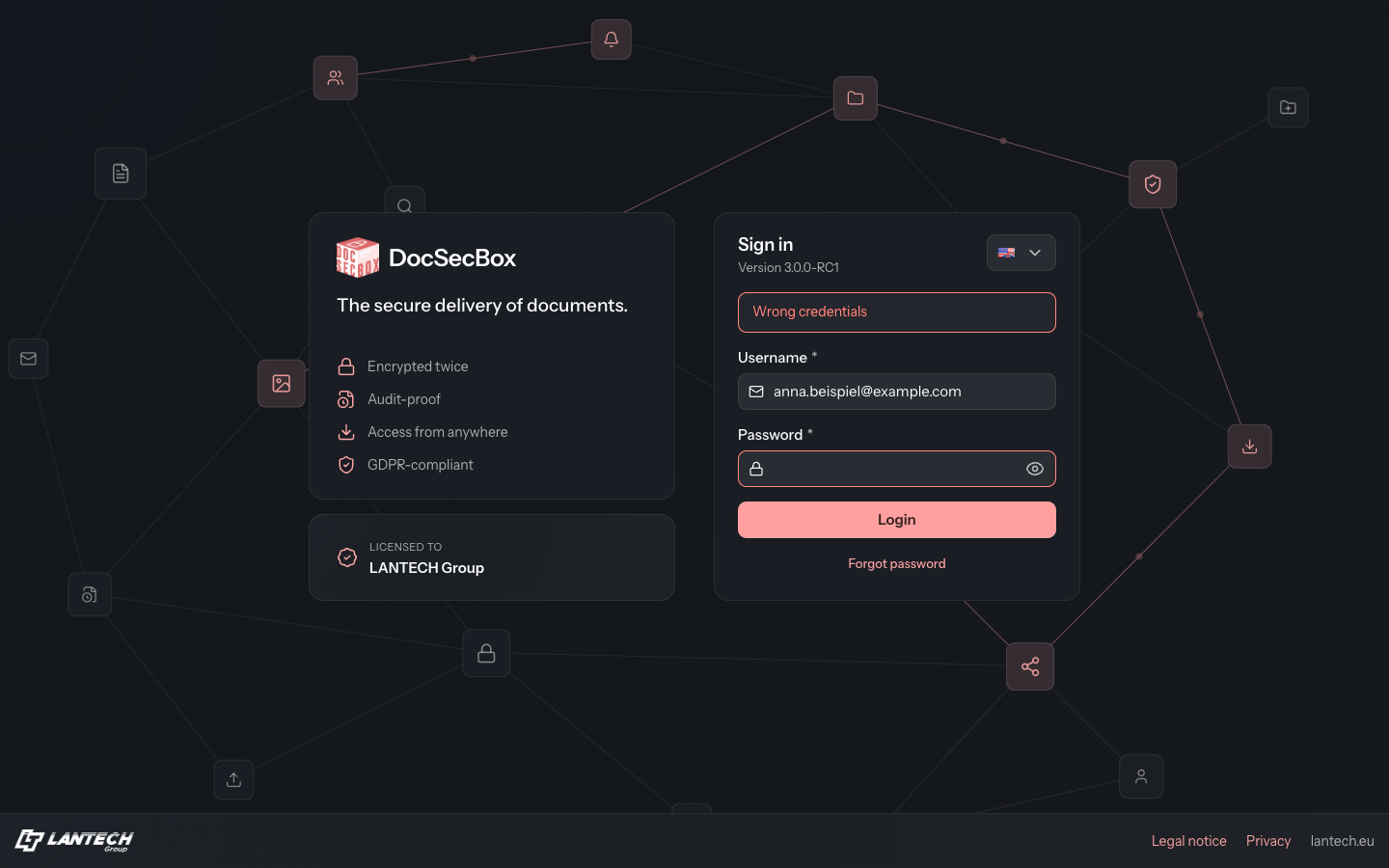
| Message in the card | What you can do |
|---|---|
| “Wrong credentials” | The username or password is wrong. The password field is cleared, the username stays. Enter the password again or use Forgot password. |
| “Please check username and password!” | A field is empty. Fill in both fields. |
| “That code is not correct or has expired.” | Enter the current code from the app. A code is only valid for a short time. |
| “The sign-in has timed out. Please sign in again.” | Too much time passed between the steps. Sign in again from the start. |
| “There is no valid licence for this tenant.” | The tenant cannot be used at the moment. Choose another one or contact your administrator. |
| “This account is not assigned to any tenant. Please contact the administrator.” | Your account does not belong to any tenant. Only your administrator can change that. |
Good to know
- The login page is always dark. You choose your own colour mode after signing in.
- The language selector on the login page only applies to this page. You set the language of the DocSecBox itself in your profile.
- On the left of the login page, LICENSED TO shows which company the installation is licensed to. The footer leads to Legal notice and Privacy.